
Guide
PANDUAN

BACA
Android Phones and Tablets

Install
- buka
 pada ponsel atau tablet android Anda
- ketik Lumosbooks pada kolom pencarian

- Klik
 untuk mulai menginstal
Log Masuk
Temu  Temukan aplikasi Lumosbooks Pencarian aplikasi pada perangkat atau telepon Anda
- via aplikasi Lumosbooks - Masukkan username dan password untuk sign in

- Via Facebook -Login ke Lumosbooks dengan menggunakan akun Facebook

Baca
Setelah Anda berada dalam aplikasi Lumosbooks, ikuti langkah-langkah berikut untuk mulai membaca
- Sentuh
 untuk menuju laman untuk mengunduh.
- Pilih ebook yang ingin Anda unduh,
kemudian klik


- Anda akan secara otomatis dibawa ke


- Setelah selesai mengunduh, klik cover ebook.

- Jika Anda mengunduh lebih dari satu ebook, Anda dapat memeriksa status pengunduhan dengan mengklik


- Layar monitor Anda menampilkan halaman ebook yang Anda pilih, sekarang Anda dapat mulai membaca
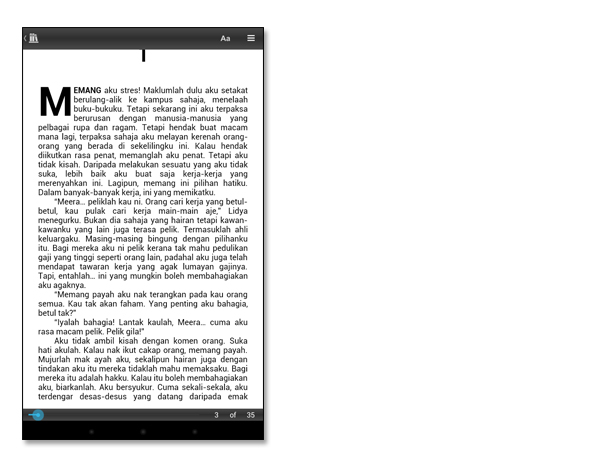
- Klik dua kali pada layar untuk bisa mengakses berbagai fungsi
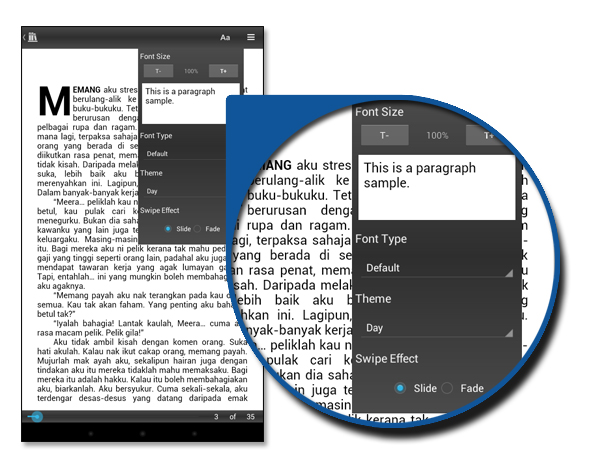
Fungsi-fungsi
[Swipe] untuk membuka halaman selanjutnya dan sebelumnya
 menampilkan daftar isi.
 untuk mengatur ukuran dan jenis font, tema, dan efek swipe.
 menuju ke rak buku.
di rak buku terdapat dua ikon di sudut kanan atas e-reader.
 untuk menampilkan profil, daftar unduhan, menuju ke Lumosbooks store, QR scanner, panduan, dan sign out.
 untuk menghapus atau menata ulang buku di rak buku Anda.
Desktop PC

Login > Baca
Log In
mengakses Cloud Reader dengan mengetik http:/reader.lumosbooks.com pada browser Anda
- melalui aplikasi Lumosbooks - Masukkan username dan password untuk sign in

Baca
Setelah Anda berada di aplikasi Lumosbooks, ikuti langkah-langkah berikut untuk mulai membaca
- Arahkan mouse Anda ke e-book yang ingin Anda baca
- Klik

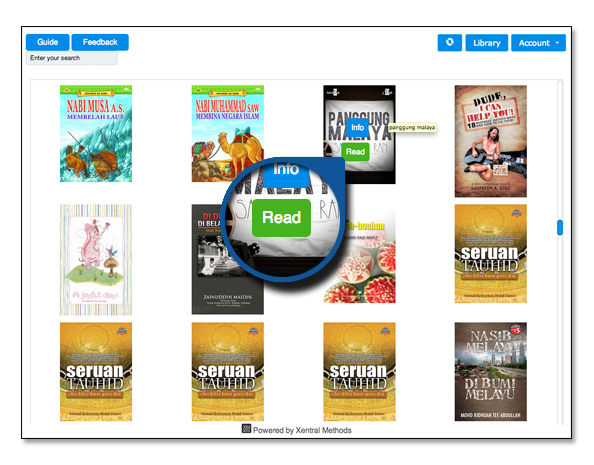
- Jika Anda baru saja membeli sebuah e-book tetapi tidak ada dalam daftar, silakan refresh laman terebut dengan mengklik
 yang terletak di pojok kanan atas.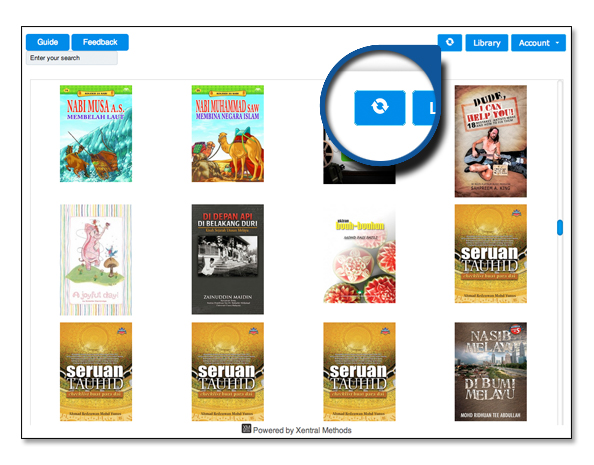
Berbagai fungsi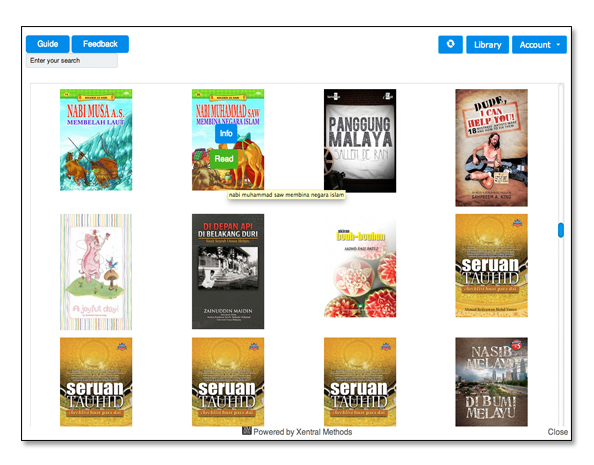
 Petunjuk penggunaan Cloud Reader
 Untuk memberikan umpan balik kepada kami
 masukkan judul ebook yang anda inginkan untuk pencarian cepat
 eBook yang telah Anda beli
 pilihan untuk mengakses profil, menonaktifkan akun dan logout
 untuk memuat ulang perpustakaan Anda
Ketika Anda sedang membaca, ikon-ikon ini yang berfungsi untuk mengarahkan Anda menuju e-reader: 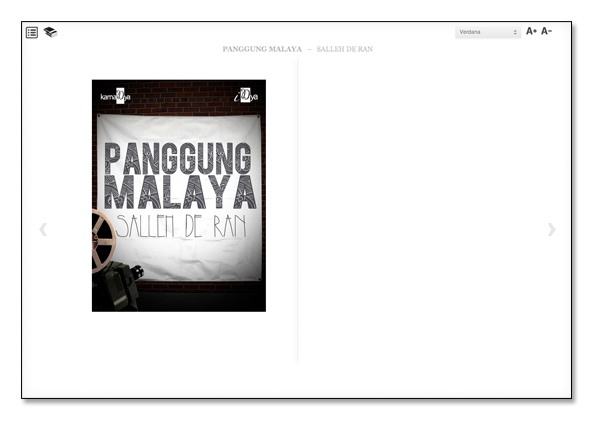
[< >] membuka halaman berikutnya atau sebelumnya
 Klik untuk kembali ke Cloud Library Anda
 Untuk mengakses bab tertentu dari buku yang sedang Anda baca
 Untuk mengatur jenis dan ukuran font
iOS / iPhone / iPad

Install
- Pergi ke


- cari 'Lumosbooks' pada kolom pencarian
- Sentuh
 untuk menginstal aplikasi
Log In
Temukan aplikasi  pada perangkat atau telepon genggam Anda;
- Via Lumosbooks application - Masukkan username dan password untuk daftar masuk

Baca
Setelah Anda berada dalam aplikasi Lumosbooks, ikuti langkah-langkah berikut untuk mulai membaca
- Sentuh untuk mulai mengunduh

- Pilih ebook yang ingin Anda unduh dengan mengklik


- Anda dapat mengecek status pengunduhan Anda di sini -


- Setelah proses unduh selesai, silahkan klik ini


- Temukan ebook yang sudah Anda unduh dengan mengklik covernya
- Layar monitor Anda menampilkan isi ebook yang Anda pilih, sekarang Anda bisa mulai membaca

- Klik dua kali pada layar untuk mengetahui fungsi-fungsi yang bisa diakses

Berbagai fungsi
[Swipe] untuk membuka halaman sebelumnya atau selanjutnya
 untuk mencari istilah yang ada pada suatu laman tertentu
 untuk bergerak di antara bab
 untuk menyesuaikan ukuran dan jenis font, serta pengaturan lainnya
Windows Apps


Install
- Pergi ke Store

- Cari untuk "e-Sentral"

- Klik/Sentuh on "Install"

Launch & Log In
-
Anda boleh mendapatkan aplikasi eSentral dibawah "Apps". Pilih "Pin to Start" atau "Pin to Taskbar" untuk akses lebih mudah melalui Start Menu ataupun Taskbar.
You may find eSentral application under "Apps". Right click and choose "Pin to Start" or "Pin to Taskbar" for easier access through either Start Menu or Taskbar.
Tips: Untuk Surface, anda perlu klik sehingga pilihannya muncul.
Tips: In Surface, you have to do a long click until the options appear at the bottom of the screen instead of right click. -
Di dalam apps, anda bolehlah log masuk:
In the apps, you may sign in:-
Menggunakan user ID - masukkan username dan password, kemudian klik "Sign In"
With your user ID – fill in your username and password then click "Sign In"
-
Melalui Facebook - Facebook popup akan muncul dan anda masukkan maklumat yang dikehendaki. Kemudian klik "Log in"
Via Facebook – A new window leading to Facebook will pop up. Fill in your Facebook details there and click "Log in"
- Gmail – Akan Datang !
-
Menggunakan user ID - masukkan username dan password, kemudian klik "Sign In"
Navigate
-
Pada pertama kali menggunakan app, anda akan disambut dengan Skrin Pemula kami. Di sini anda boleh mempelajari bagaimana untuk melayari app tersebut dengan nota yang disediakan dengan menggunakan swipe ataupun tap pada anak panah. Anda juga boleh melayari nota kami semula di Panduan.
The first time you use the app, you will be greeted by our welcome screen. Here you may learn how to navigate through the application by swipe / tap arrows to go through the lesson. You can also find it back in Guide. -
Ada tiga bahagian untuk membantu anda mencari, download dan baca ebook anda:
We have three sections in aiding you to find, download and read your books:-
Featured Hub- Buku-buku menarik dari website
Featured Hub– Interesting books from our website

-
Downloaded Hub- Buku-buku yang sudah didownload
Downloaded Hub– Books which have been downloaded

-
Purchased Hub- Buku-buku yang sudah dibeli. Untuk membacanya di App, anda perlulah download ebook-ebook ini terdahulu di dalam apps.
Purchased Hub– Books which have been purchased. Note that to read it on your app you have to dowload these books first.

-
Featured Hub- Buku-buku menarik dari website
Featured Hub– Interesting books from our website
-
Untuk mencari buku dari mana-mana senarai, anda boleh menggunakan 'Search bar' yang terletak di bahagian atas kanan.
To quickly find books from any list, you can use the search bar on the top right hand corner.

Download
- Click on "Purchased". It will show all the books which have been purchased so far. Swipe through the books to find books you wish to dowload.

- If you just purchased the book and it has not showed up, click "Refresh".

- You may sort your books with the Sort button available at the bottom-right corner of the apps. Sorting can be done according to:
- By date
- By title
- By author

- You may also sort by Categories by clicking on "Categories" button on the left of "Sort" button.

- Once you find it, click on the book. For example, we will download Buah Hati Meera

- You may notice the book will be missing from the "Purchased" section and the word "Downloading" will appear. This means the book is currently being downloaded.

- Once the word "Downloading" has disappeared, the downloading process has completed.
Open & Read
- Click on "Downloaded". It will show all the books which have been downloaded.

- Click on the book you wish to read.
- To read your book, you may tap on the arrows or swipe to move between the pages.

- You can right click to pull up the page navigation tool. Use "Table of Contents" when you are reading books that are very lengthy in pages and/or have numerous chapters. Drag the sliders if you want to skip few pages.
Tips: Swipe from bottom of the screen if you are using Surface instead of right click.

- To bookmark the pages, click on either of the ribbons on the top left or top right of the screen, depending on which page you wish to bookmark.


- If you want to read other books, press right click. An arrow will appear on the top left of the screen. Click on the Arrow to go back to "Purchased" section.
Tips: Swipe from bottom of the screen if you are using Surface instead of right click

Logout & Deactivate
- Click your name at the top right of the screen.

- The button will reveal choices to "Logout" and "Deactivate".

FAQs
- I have deactivated my account. What will happened to my downloaded book?
You will not lose your books. The books will be back on the "Purchased" section - I have purchased a book and downloaded it. However, when I opened it, there is an error message then the book is gone from both "Purchased" and "Downloaded". What should I do?
Report this to our support at support.e-sentral.com together with the receipt number as your proof of purchase and the name of the books. We will double check the purchase and give your book back.